


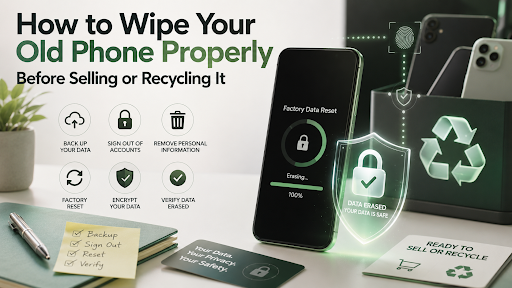
You are ready to let go of your old phone. Maybe you are selling it. Maybe you are recycling it. Either way, one step matters more than almost anything else you do during this process. Wiping it properly.
Skip this step, or do it halfway, and you risk handing a stranger access to years of personal information. Let’s walk through exactly how to do it right, no shortcuts, no guesswork.
Why This Step Matters More Than People Realize
Your phone holds more personal information than most people stop to consider. Photos. Messages. Saved passwords. Banking apps. Location history. Even a quick factory reset done incorrectly can leave traces of this information recoverable by someone with the right tools.
This is not about being paranoid. It is about being responsible. A properly wiped phone protects you completely. A carelessly wiped phone leaves a door open you probably do not want left open.
Step One: Back Up Everything First
Before wiping anything, make sure nothing important gets lost permanently. Back up your photos, contacts, messages, and any app data you want to keep.
On an iPhone, this means backing up through iCloud or directly to a computer using Finder or iTunes. On Android, Google’s backup system handles most of this automatically, though it is worth checking manually that your photos, contacts, and important app data are actually included.
Take a few minutes here. Rushing this step is how people lose years of photos permanently, and that mistake cannot be undone once the phone is wiped.
Step Two: Sign Out of Every Account
This step gets skipped constantly, and it causes real problems. Before wiping your phone, manually sign out of every account tied to the device. This includes your Apple ID or Google account, email accounts, social media apps, and any banking or payment apps installed.
On an iPhone specifically, go to Settings, tap your name at the top, scroll down, and sign out completely. This also removes the device from Find My iPhone, which is critical for the next step.
Skipping this step is one of the most common reasons secondhand phones become unusable for buyers. If your account remains linked, the new owner may find the phone locked entirely, unable to activate it at all.
Step Three: Remove the Device From Find My iPhone or Find My Device
This deserves its own dedicated step because it causes so many problems when missed. Even after signing out, double check that your phone no longer appears under Find My iPhone or Find My Device on another device you own.
If it still appears there, remove it manually. This confirms the phone is fully disconnected from your account and ready to be activated freely by its next owner, whether that is a buyer or a recycling facility preparing it for reuse.
Step Four: Remove the SIM Card and Any Memory Cards
Before wiping, physically remove your SIM card if your phone uses one. This is easy to forget, especially with smaller phones where the SIM tray sits in an unexpected spot.
If your device uses a memory card for additional storage, remove that too. Wiping the phone itself does not always affect a separate memory card, so this step protects any data stored there from being handed over accidentally.
Step Five: Perform a Full Factory Reset
Now for the actual wipe. On an iPhone, go to Settings, then General, then Transfer or Reset iPhone, then choose Erase All Content and Settings. Confirm when prompted, and enter your passcode if requested.
On Android devices, the process varies slightly by brand, but generally sits under Settings, then System, then Reset options, then Erase All Data, sometimes labeled Factory Data Reset. Follow the prompts fully until the device restarts completely blank.
This process removes your personal data, accounts, and installed apps, returning the phone to its original out-of-box state.
Step Six: Encrypt Before You Wipe, If Your Device Requires It
This step matters more for certain Android devices than iPhones, since Apple encrypts data by default. On some Android phones, manually enabling encryption before performing a factory reset adds an extra layer of protection, making any remaining data fragments significantly harder to recover.
Check your device settings under security options to confirm whether encryption is already active. If it is not, enabling it briefly before your final reset adds meaningful extra protection, especially on older devices.
Step Seven: Confirm the Wipe Actually Worked
Once the reset completes, turn the phone back on and confirm it boots into the original setup screen, exactly as it would for a brand new device. This confirms your accounts, photos, and personal data are genuinely gone, not just hidden from the home screen.
If the phone still shows any personal information, sign-in prompts tied to your account, or previous app data, stop and repeat the reset process fully before moving forward with selling or recycling it.
What If You Are Recycling Instead of Selling?
The exact same steps apply here, and skipping them because “it is just going to be recycled anyway” is a mistake. Recycling facilities often refurbish and resell functional devices rather than immediately destroying them, meaning an improperly wiped phone can still end up in someone else’s hands with your data intact.
Treat recycling with the same care as selling. Your personal information deserves the same level of protection either way.
A Few Extra Precautions Worth Taking
If you are selling your device rather than recycling it, consider physically cleaning it as well, alongside the data wipe. A clean, properly reset phone signals to buyers that you took genuine care of the device throughout ownership, which often supports a smoother, faster sale.
If you are unsure whether you completed every step correctly, many trade-in and reselling services will confirm this for you as part of their intake process, adding an extra layer of confidence before your device changes hands.
Where a Trusted Trade In Service Helps
If wiping and preparing your phone yourself feels intimidating, or you simply want extra reassurance, choosing a trusted trade in service removes much of that stress. A good service confirms your device has been properly reset before finalizing any sale, protecting you even if a step was accidentally missed.
Trade.com.au offers exactly this kind of support through its trade in service, guiding sellers through the process and confirming devices are properly wiped and account free before finalizing any payment.
Final Thoughts
Wiping your old phone properly is not a step to rush or skip, regardless of whether you are selling it or recycling it. Back up what matters, sign out of every account, confirm removal from Find My iPhone or Find My Device, and complete a full factory reset before letting your device go.
Taking these steps seriously protects your personal information completely, and it ensures whoever receives your old phone next, whether a buyer or a recycling facility, starts with a clean, properly prepared device. A few extra minutes here can save you from a headache that is far harder to fix after the fact.